OFV Live Guide
Stream volleyball matches to YouTube with real-time score overlays — no expensive equipment needed. Just your phone and this guide.
Getting Started
Download OFV Live from the App Store (iOS) or Google Play (Android — coming soon). Open the app and you'll see the welcome screen.
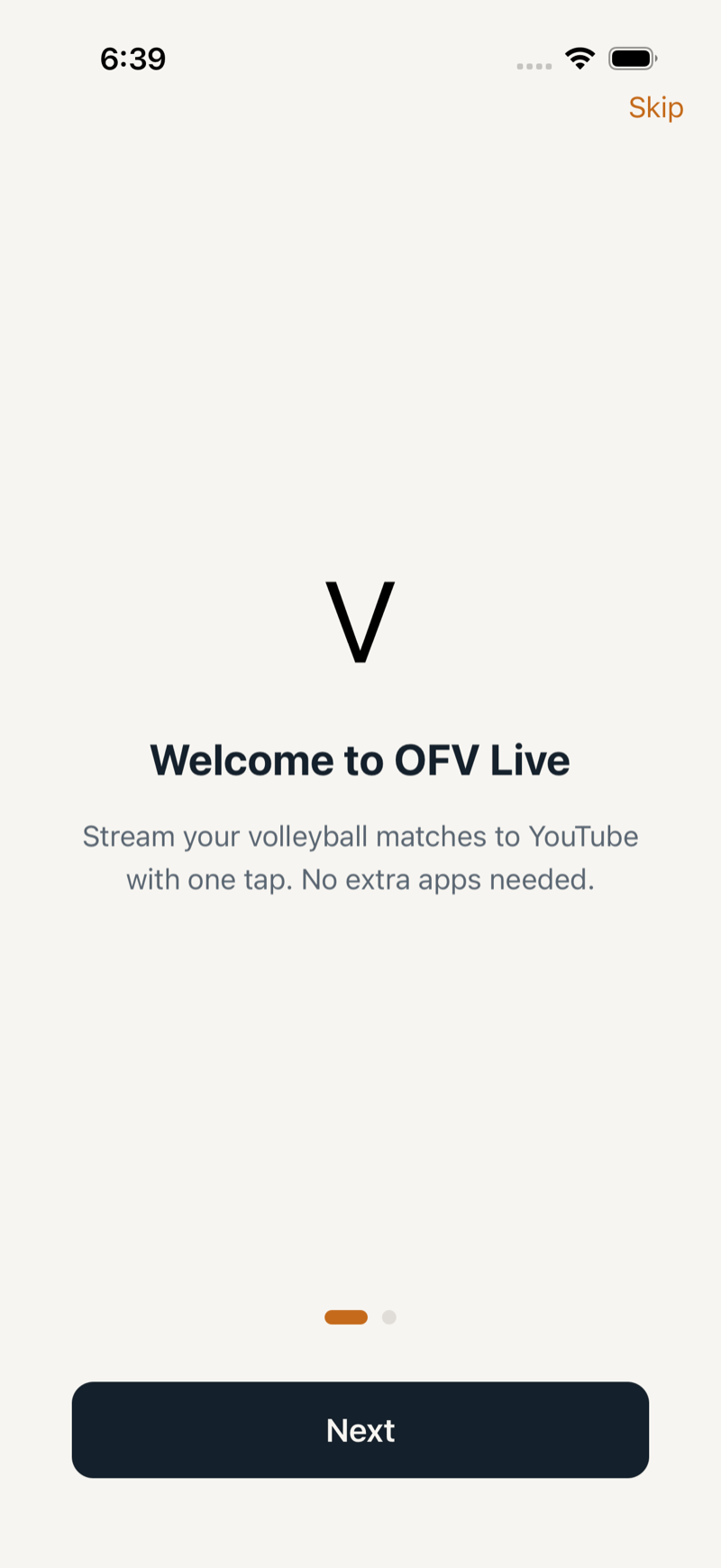
Tap Next to continue. The second slide asks how you're joining:
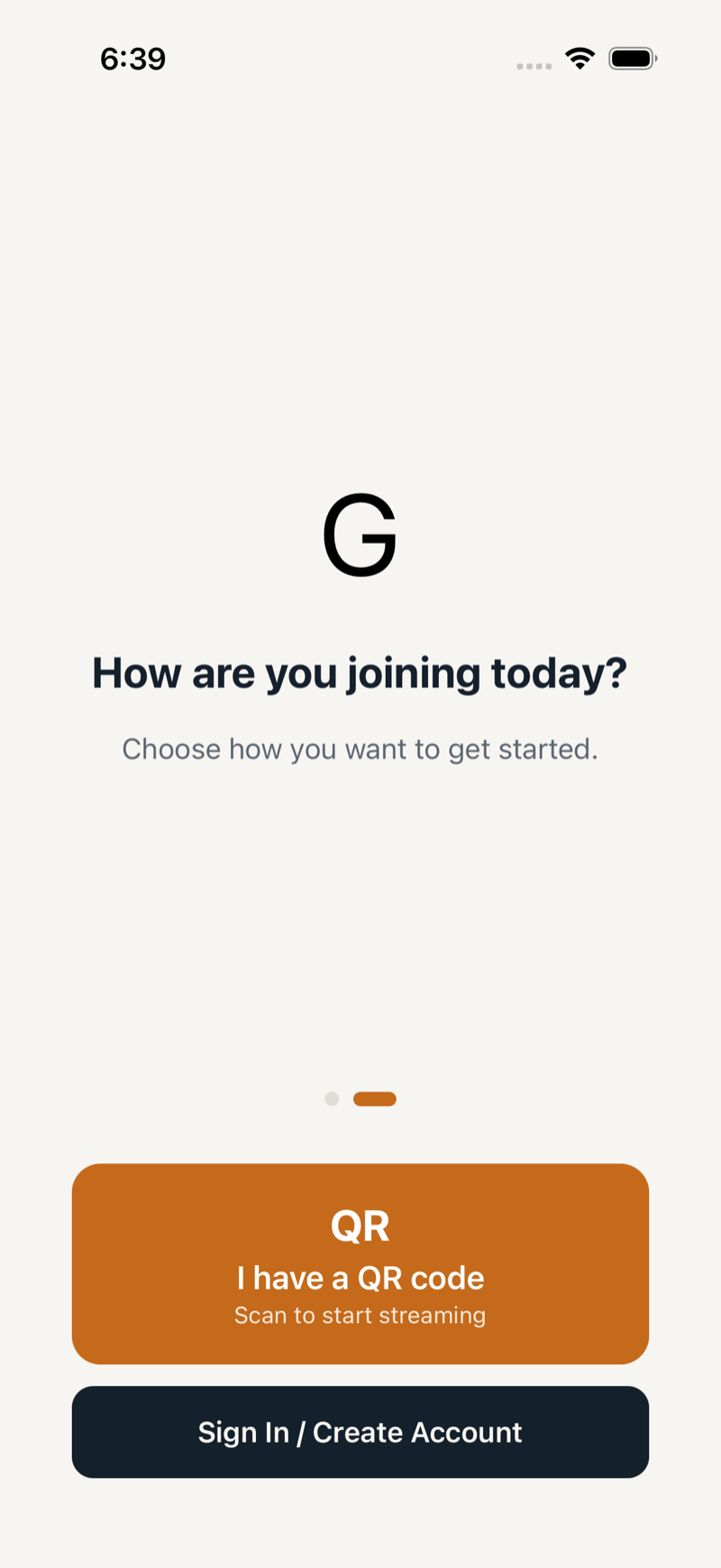
| Option | When to use |
|---|---|
| I have a QR code | Someone gave you a printed QR code to scan. Jump to Stream Setup. |
| Sign In / Create Account | You need an account first. Continue below. |
1Create your account
Tap Sign In / Create Account to reach the login screen. Since you're new, tap Create an account.
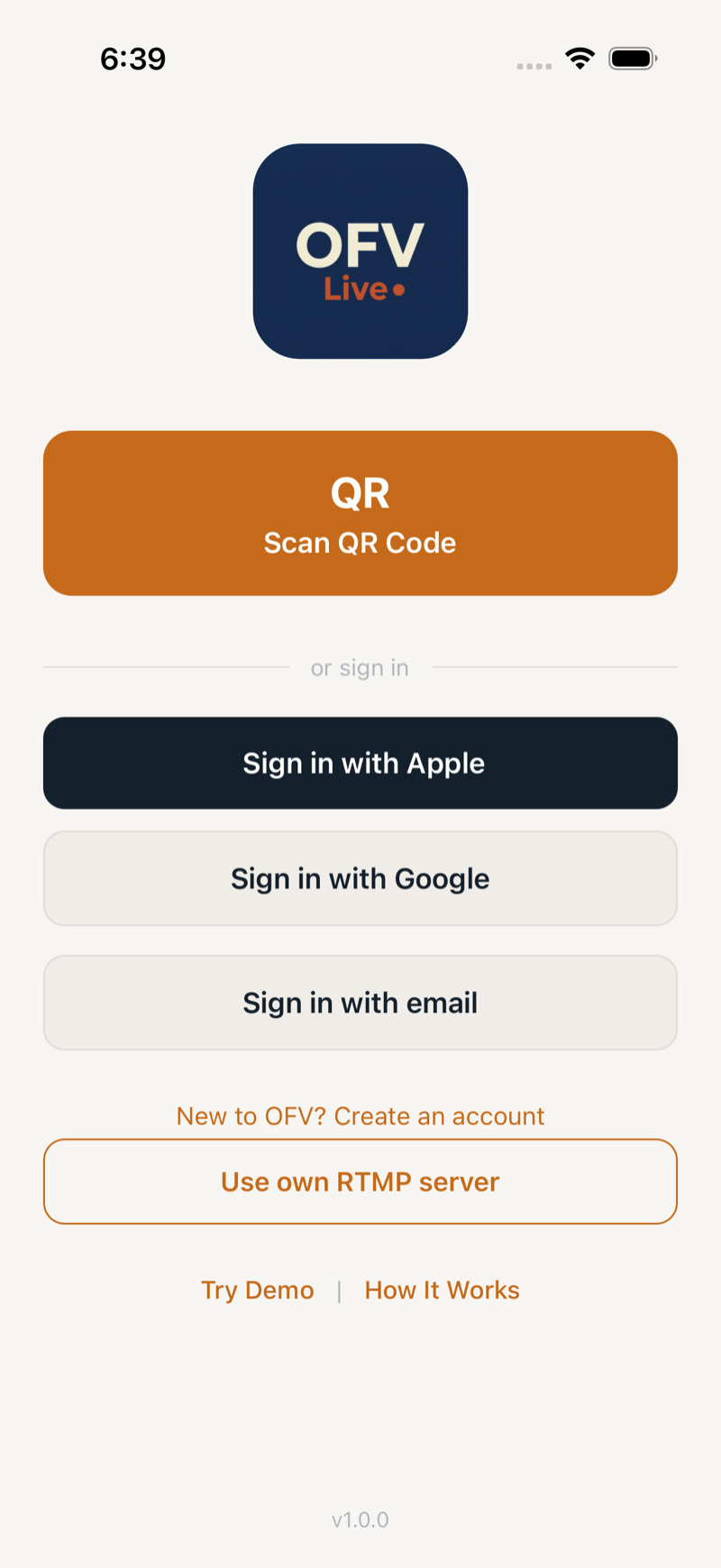
Choose one of three sign-up methods:
- Apple (iOS only) — authenticate with Face ID or Touch ID
- Google — select your Google account
- Email — enter your name, email, and a password (8+ characters)
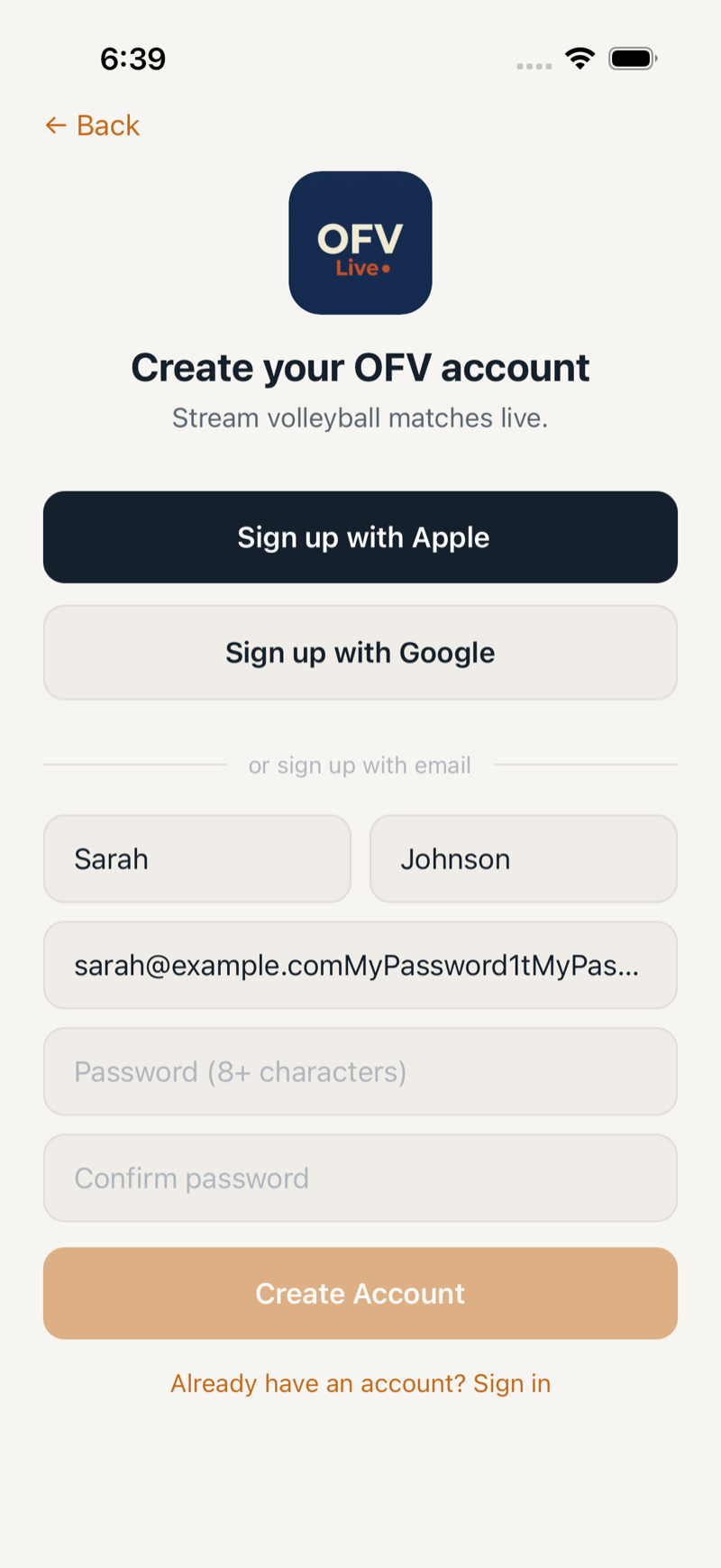
2Verify your email
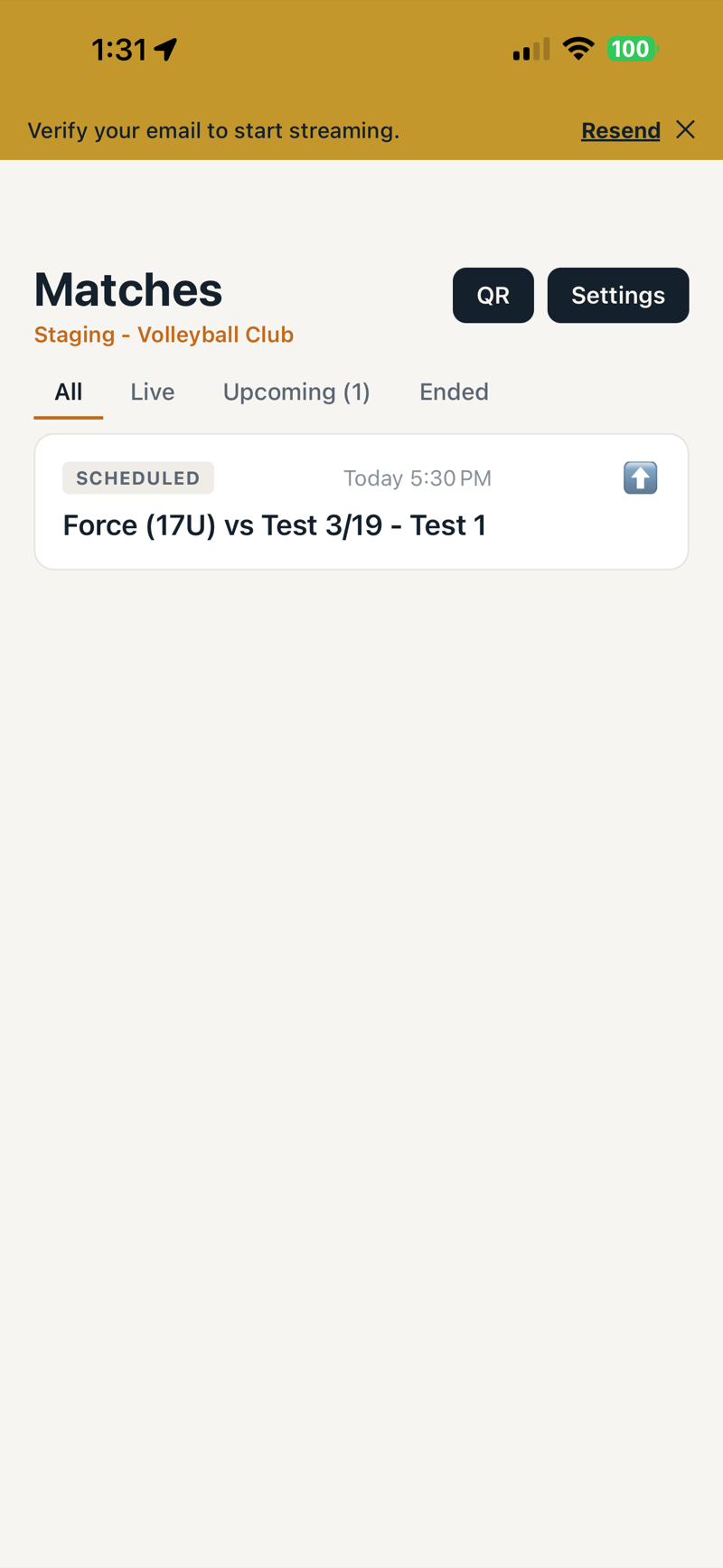
If you signed up with email, check your inbox for a verification link. Until verified, a yellow banner appears in the app. You can browse matches, but you won't be able to go live until your email is confirmed.
Joining a Club
After creating your account, you'll see the Account Pending screen. You need to join a club before you can stream.
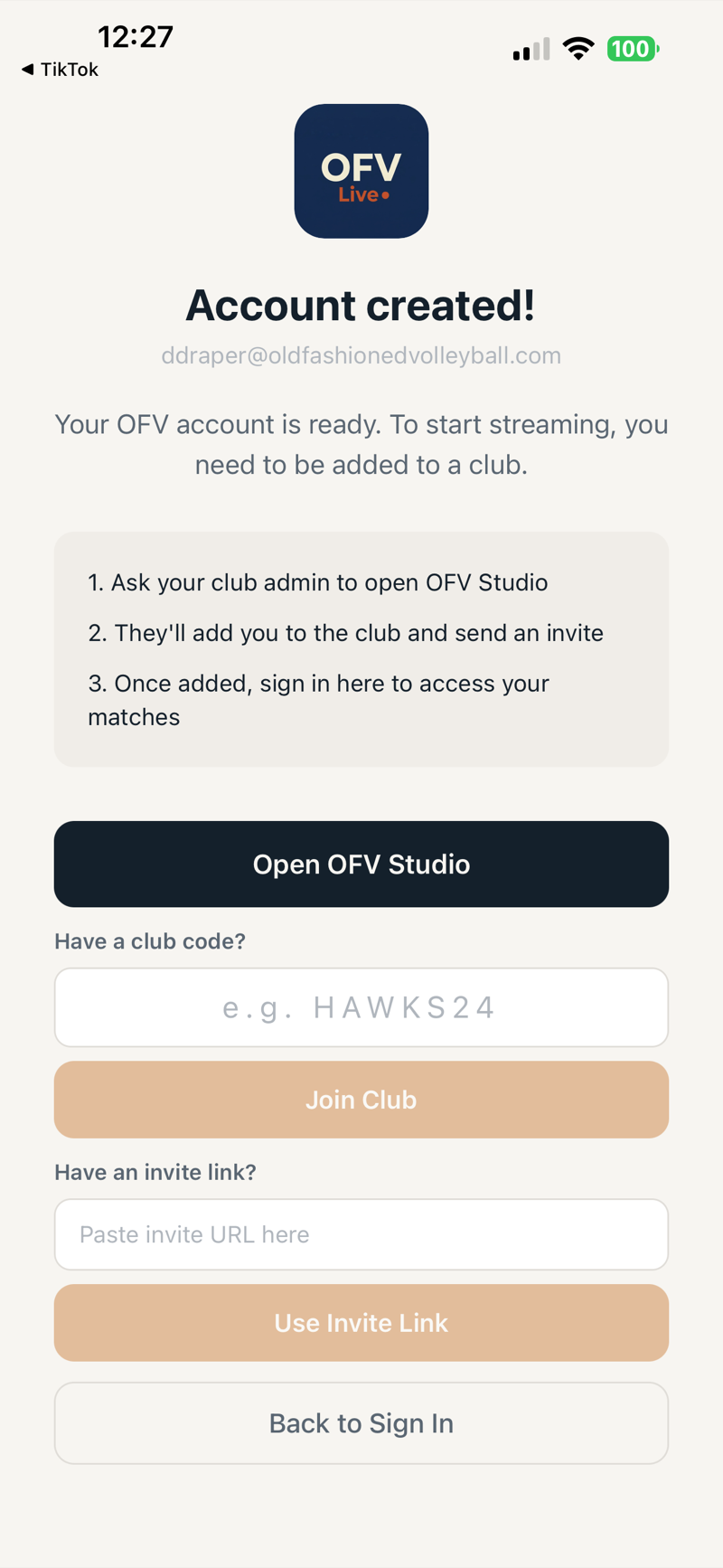
1Enter a club code
If your admin gave you a code (e.g., HAWKS24), type it in and tap Join Club.
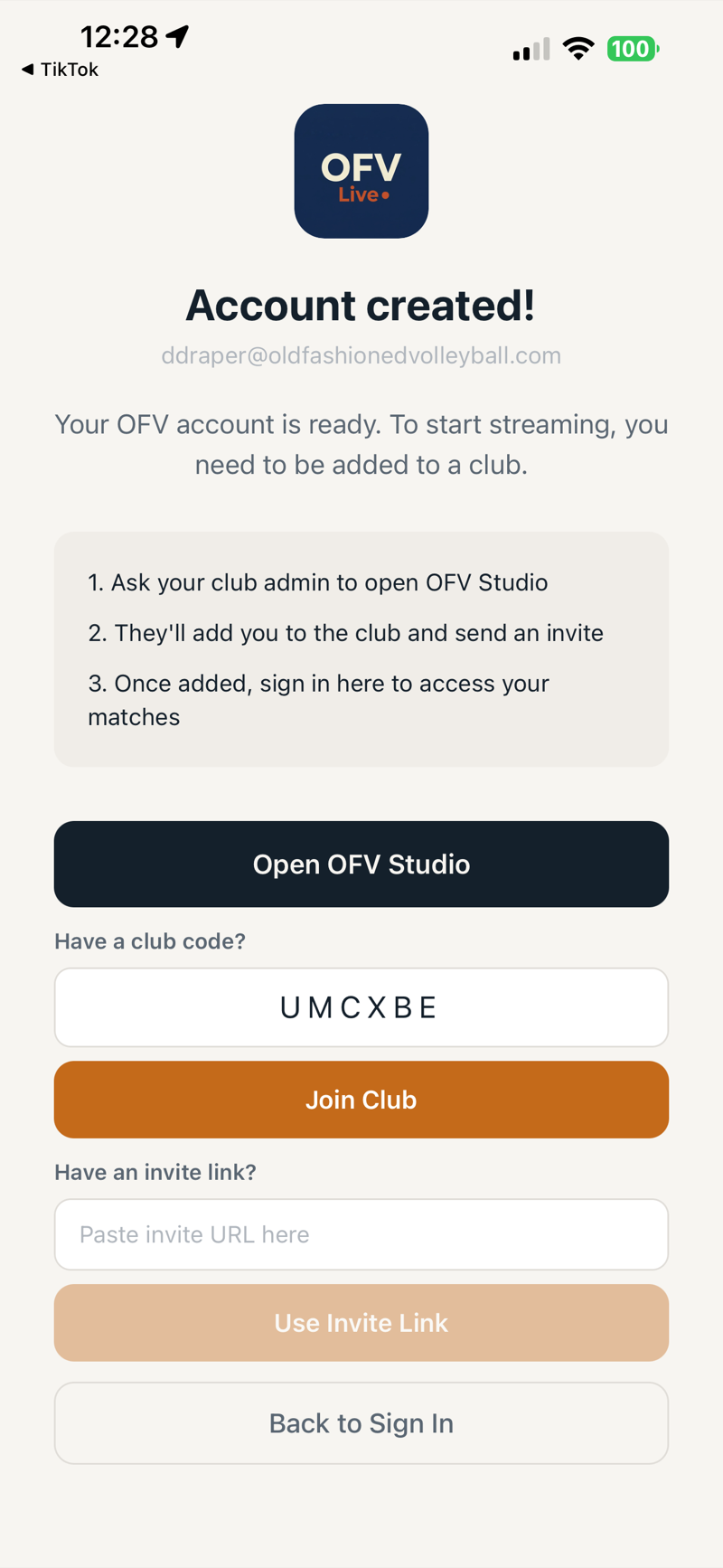
2Or use an invite link
If someone sent you a link, you can paste it in the Invite Link field, or simply tap the link on your phone — OFV Live opens automatically.
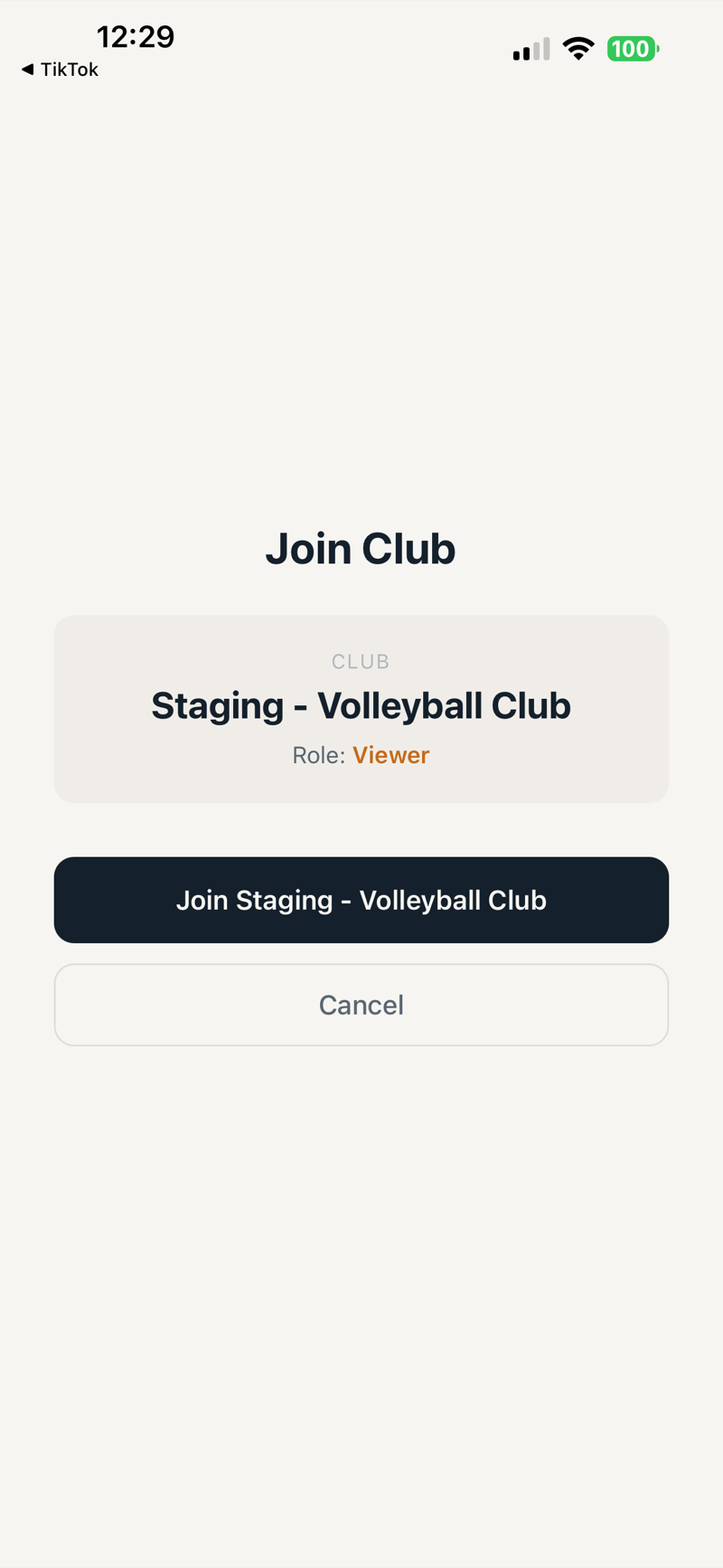
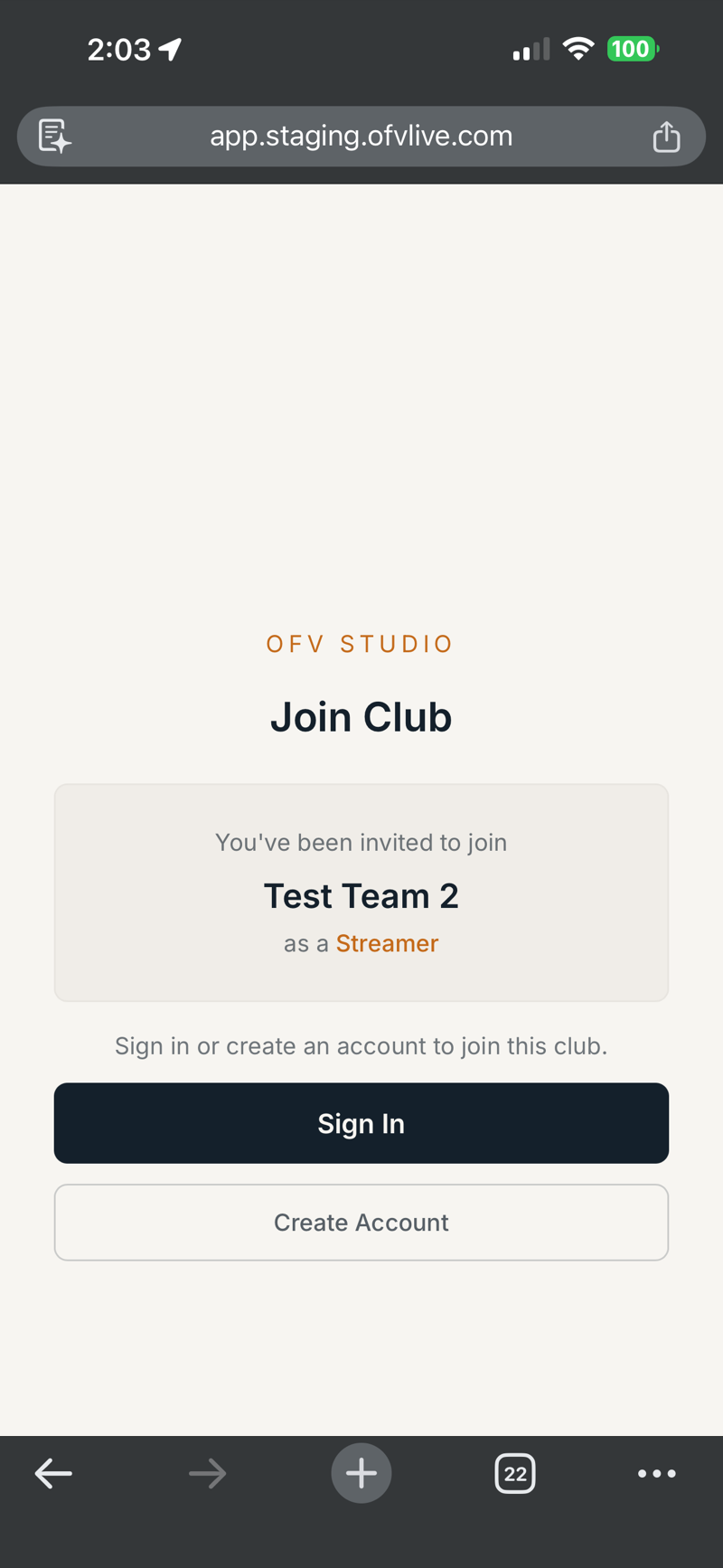
Not signed in yet? You'll see a Sign In button instead. Sign in first, then accept the invite.
3You're in!
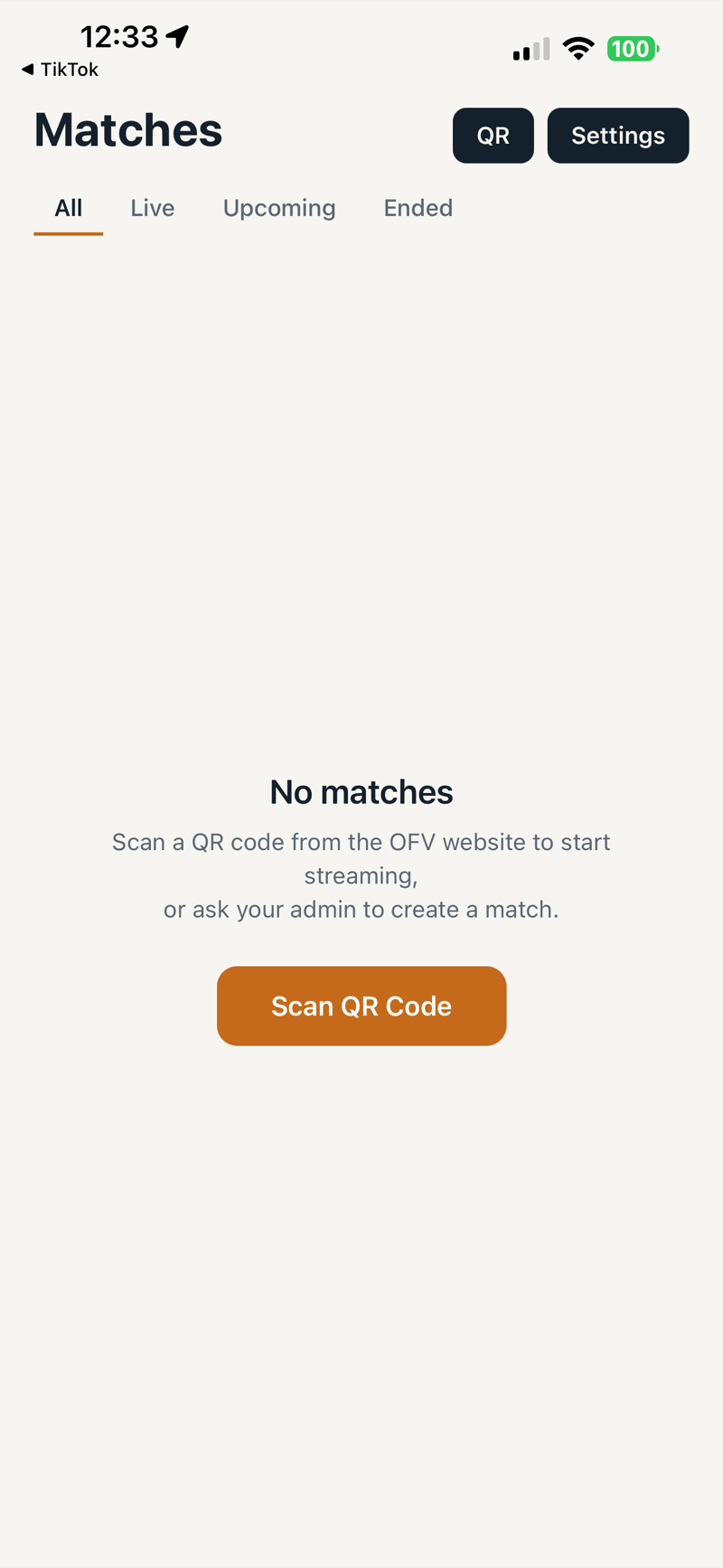
After joining, you'll land on your club's Match List. This is your home base.
Your Match List
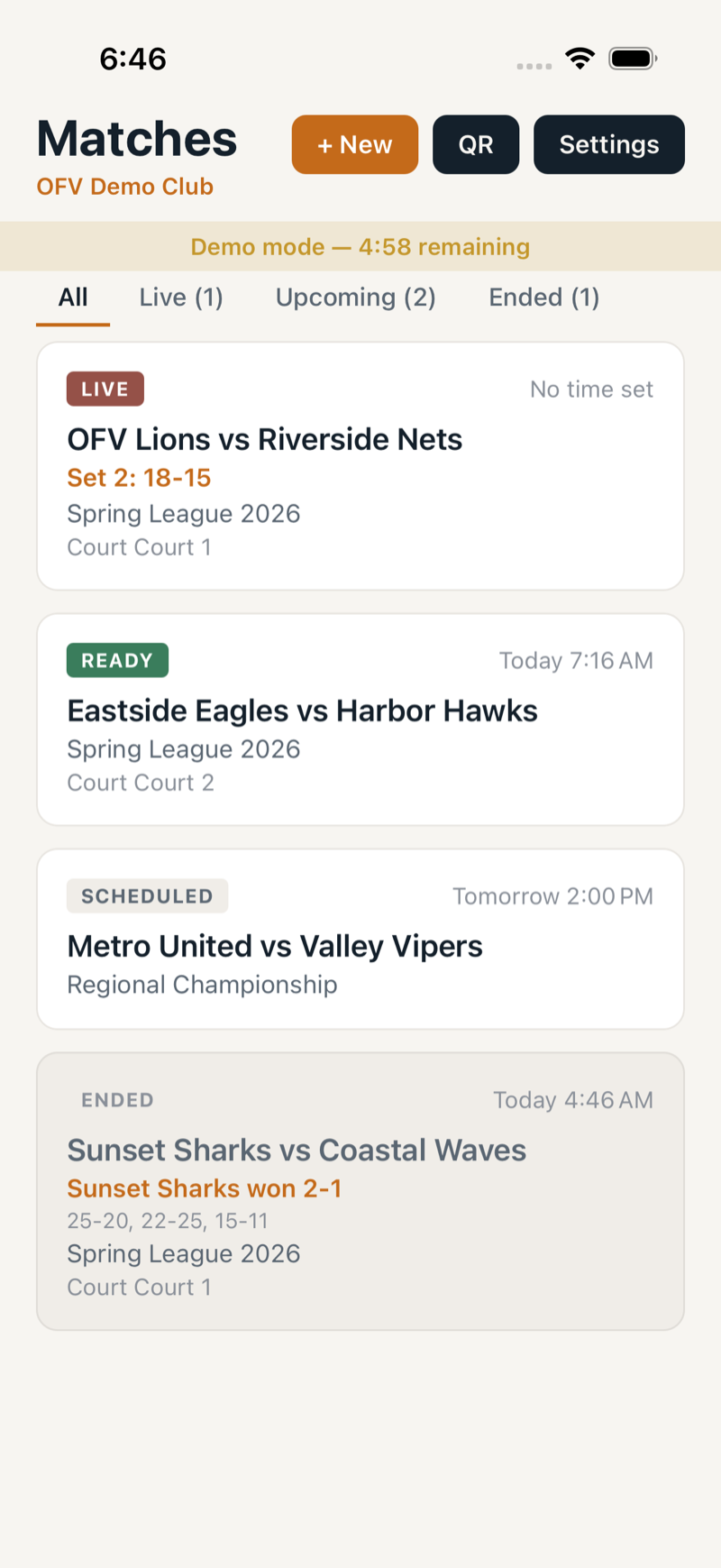
The Match List shows all your club's matches, organized by status. Use the filter tabs to find what you need.
| Badge | Meaning |
|---|---|
| LIVE | Currently streaming |
| READY | Prepared and ready to stream |
| SCHEDULED | Upcoming — not yet prepared |
| ENDED | Match completed |
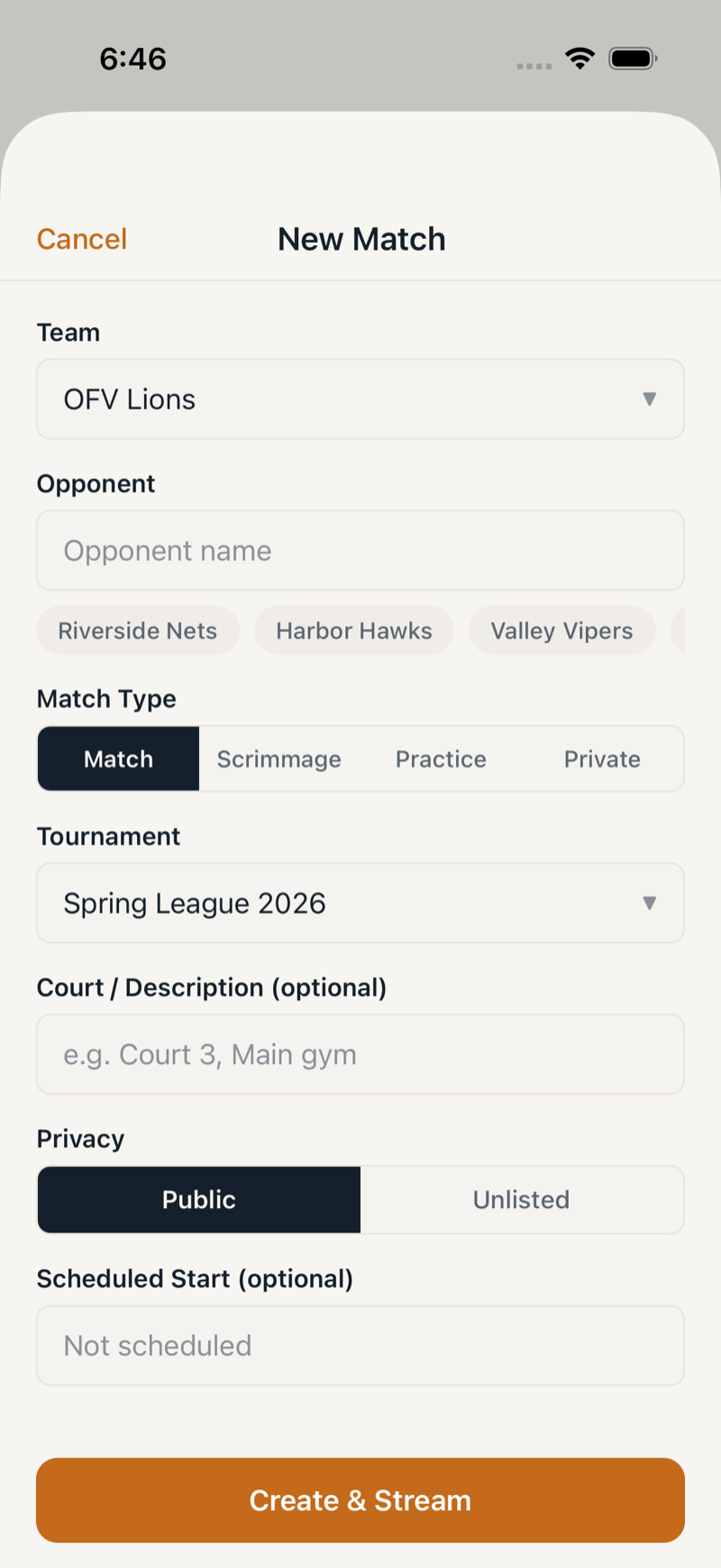
Each match card shows the teams, tournament, time, and status:
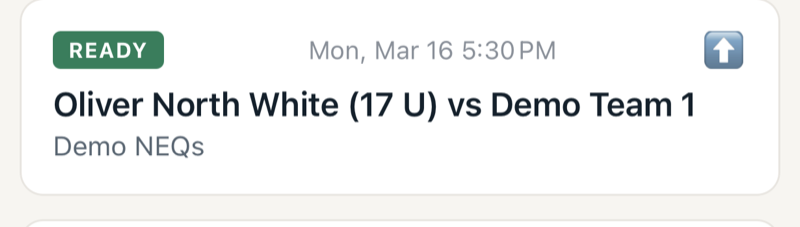
Tap a match to open it. If you're an admin or streamer, you'll also see a + New button to create matches.
Stream Setup
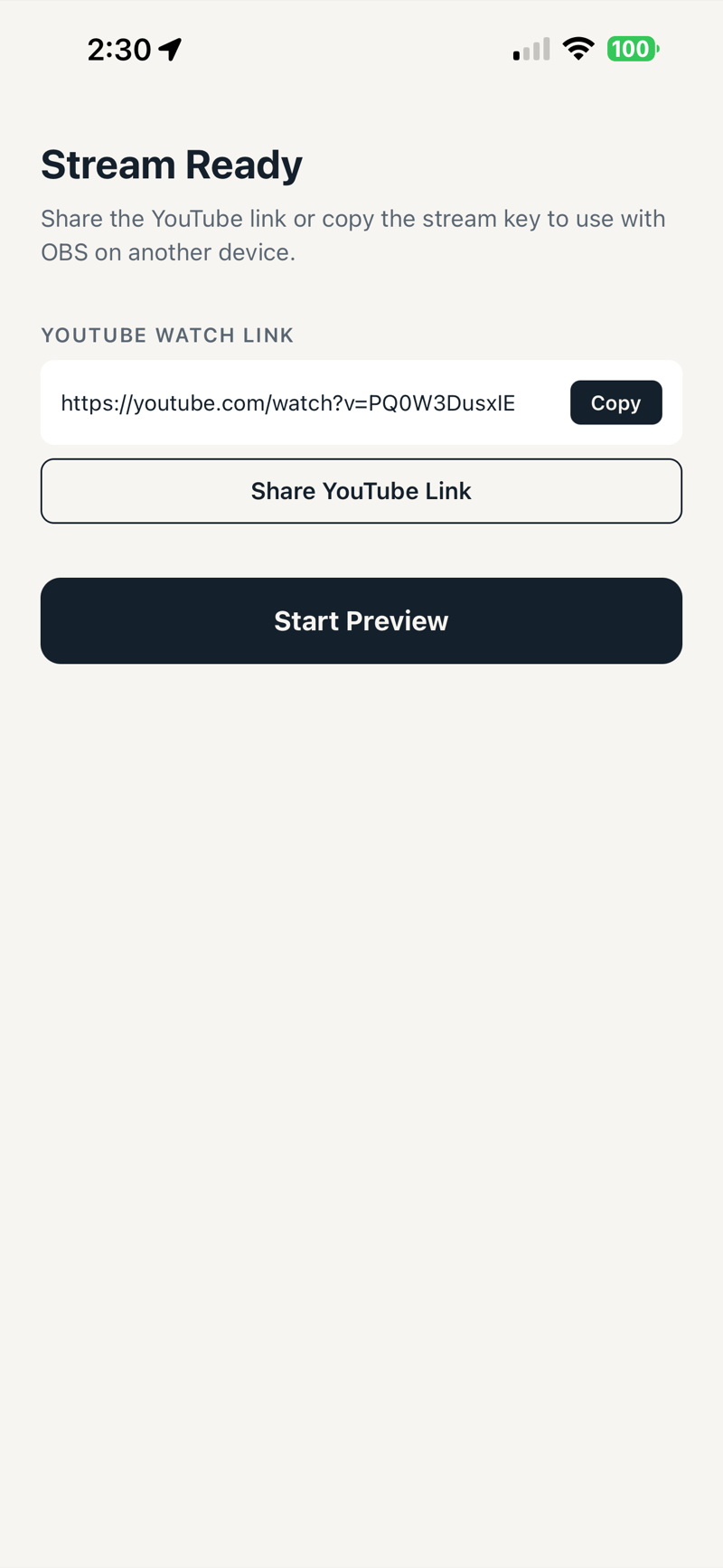
When you tap a READY match, you'll see the Stream Ready screen. This gives you everything you need — whether you're streaming from your phone or from OBS on a laptop.
Share the YouTube link
Tap Copy or Share YouTube Link to send the watch link to parents and fans before the match starts.
Stream from your phone
Tap Start Preview to open the camera. Continue to the next section.
Stream with OBS (laptop)
Copy the RTMP Server and Stream Key, paste them into OBS Studio under Settings > Stream, then click Start Streaming. You can still use OFV Live for scoring while OBS handles the video.
Preview & Camera
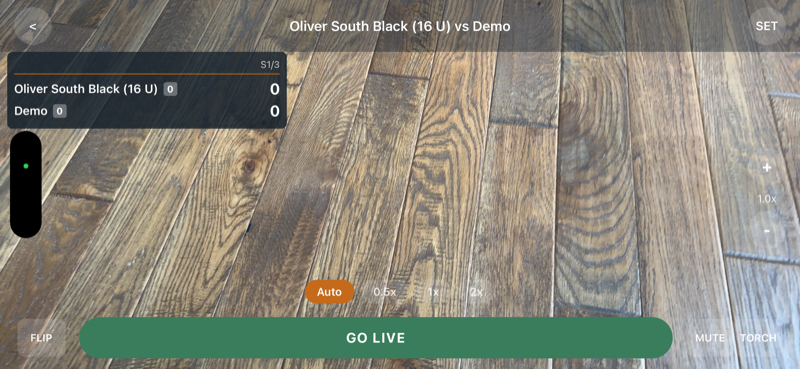
The Preview screen shows your live camera feed before you go live. Use this to frame your shot and check settings.
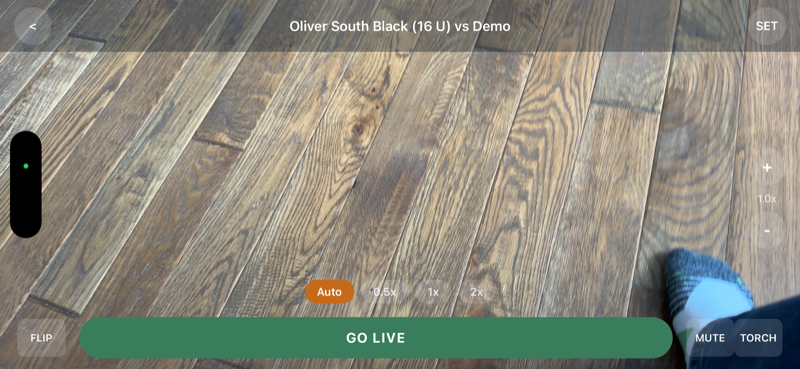
| Control | What it does |
|---|---|
| Flip | Switch front / back camera |
| Torch | Toggle flashlight (back camera) |
| +/− | Zoom in and out |
| Mute | Mute / unmute audio |
| Lens (Auto / 0.5x / 1x / 2x) | Choose camera lens — 0.5x ultra-wide is great for full court coverage |
Score overlay preview
If the overlay is enabled in Settings, you'll see a scoreboard preview on the camera feed. This is exactly how it will appear to viewers on YouTube.
Going Live
When you're happy with the framing, tap the Go Live button. The app connects to YouTube and within a few seconds you'll see the LIVE badge.
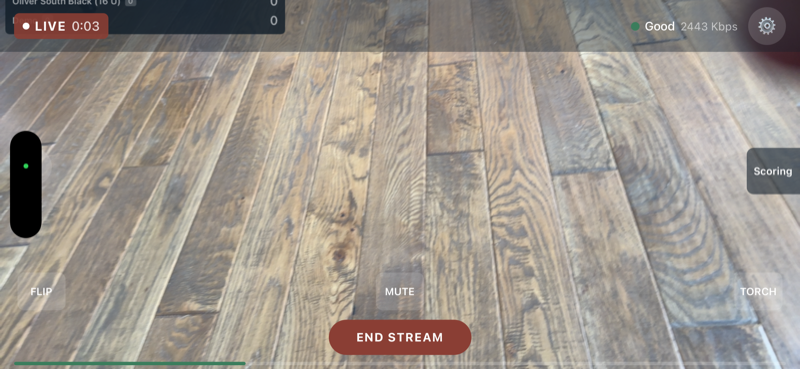
| Indicator | Meaning |
|---|---|
| LIVE | You are currently streaming |
| 0:03 | Stream duration |
| Good 2443 Kbps | Upload speed and connection health (green = good, yellow = fair, red = poor) |
Scoring
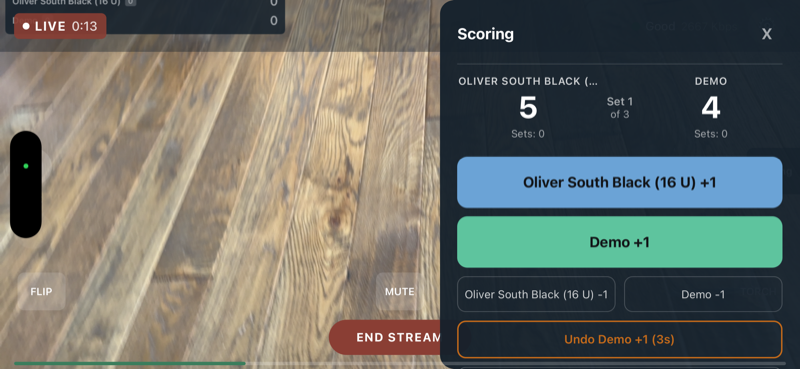
Tap the Scoring button on the right side of the streaming screen to open the scoring panel. You can also score without streaming — just tap a LIVE match from your Match List.
Recording points
Tap +1 to award a point, −1 to correct a mistake. An Undo button appears for a few seconds after each action.
Timeouts
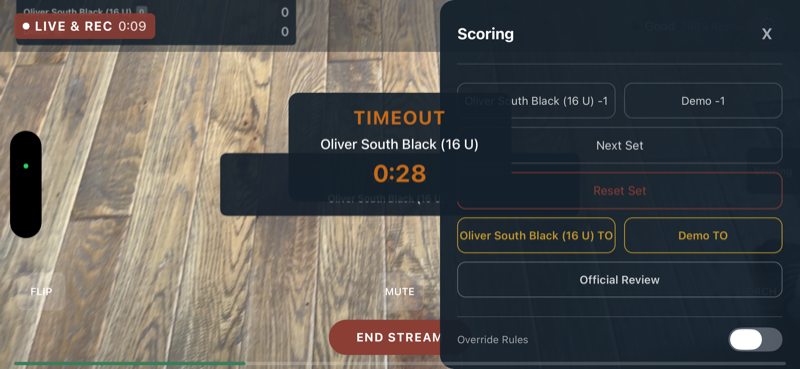
Tap a team's Timeout button to start a 60-second countdown. A banner appears on screen and on the YouTube overlay.
Set and match completion
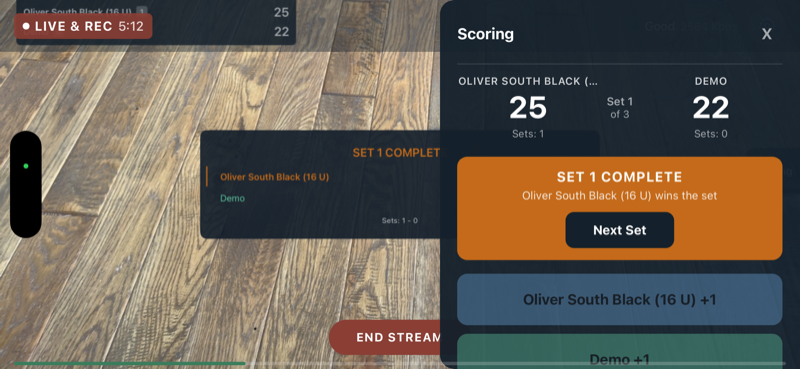
When a team reaches 25 (with a 2-point lead), the app shows a Set Complete banner. Tap Next Set to continue.
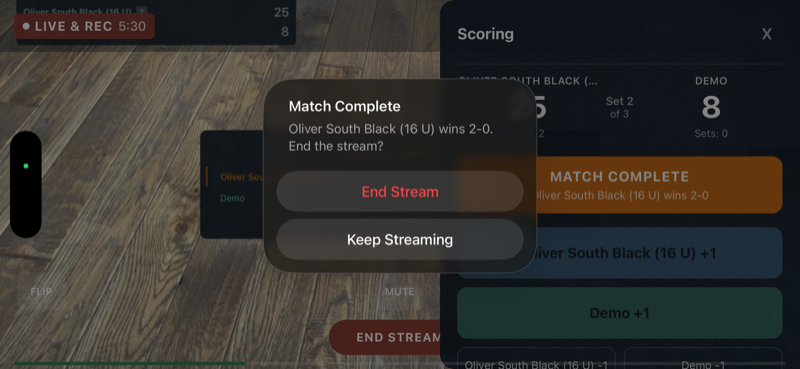
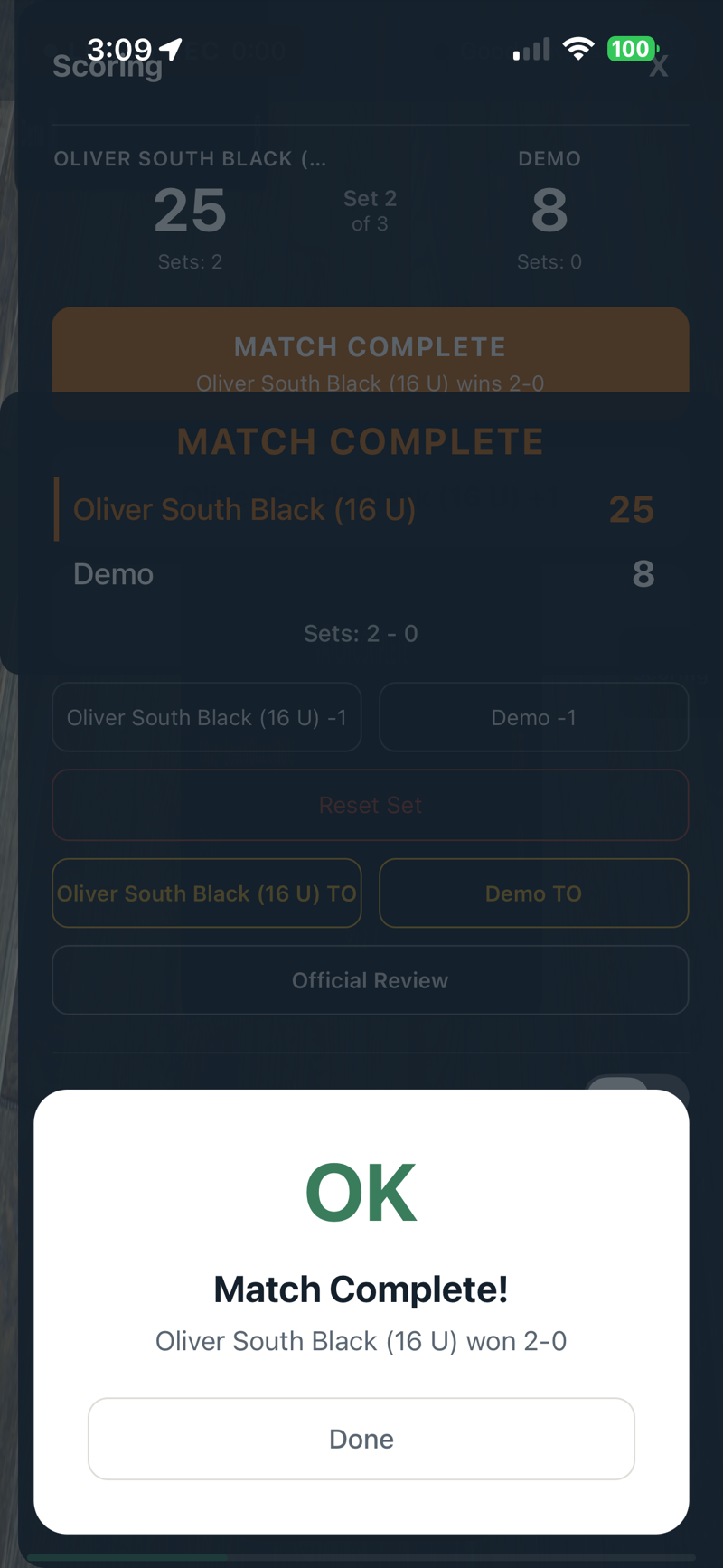
When one team wins the match (e.g., best of 3 sets), you'll see the Match Complete dialog with the final result.
Scoring without streaming
You don't need to stream to keep score. If another device handles the camera, open a LIVE match from the Match List and use the full scoring interface.
Ending a Stream
Tap the red End Stream button at the bottom of the screen. A confirmation dialog asks if you're sure. The app stops the RTMP stream, flushes any pending scores, and shows a summary with the YouTube recording link.
If someone ends the match from another device (e.g., the web dashboard), you'll see a countdown banner and the stream ends automatically after 10 seconds.
Settings
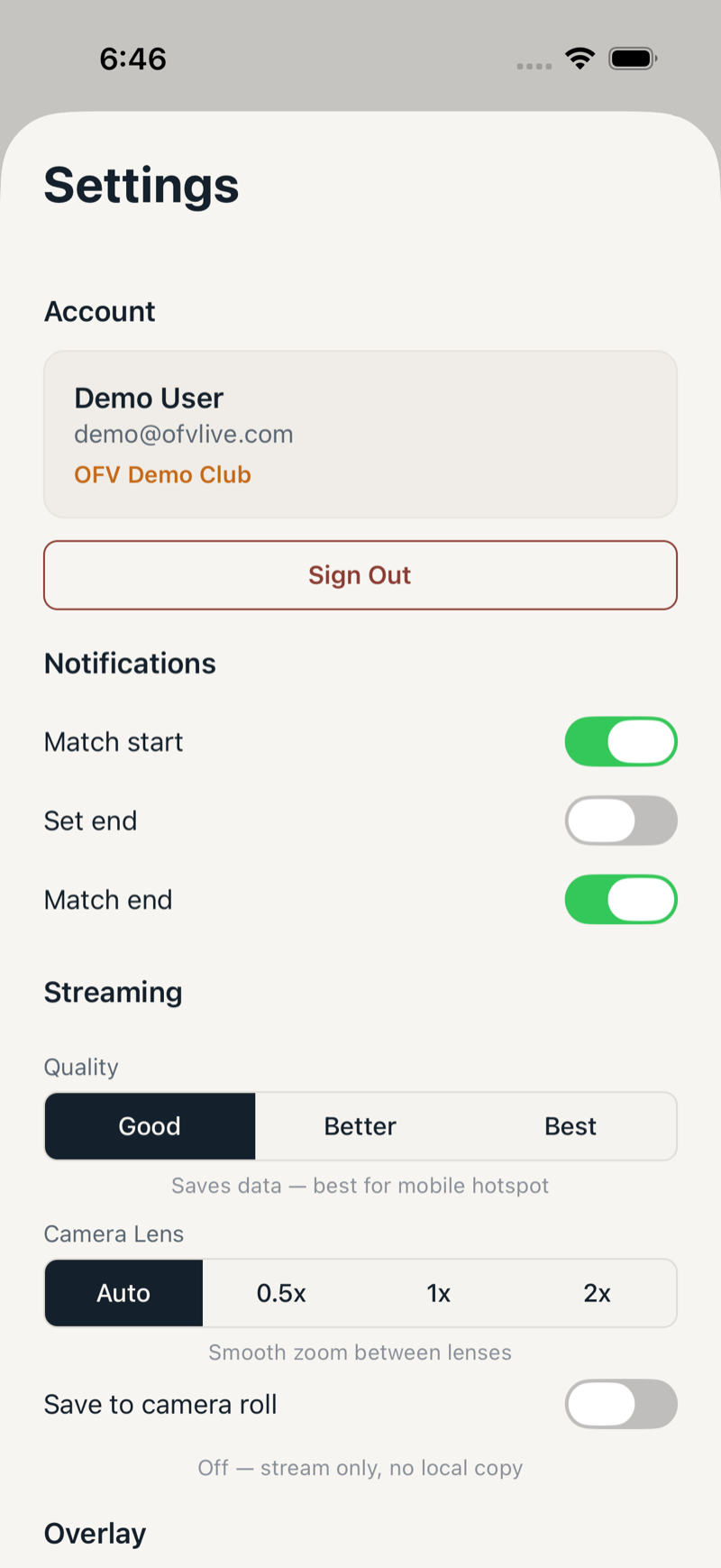
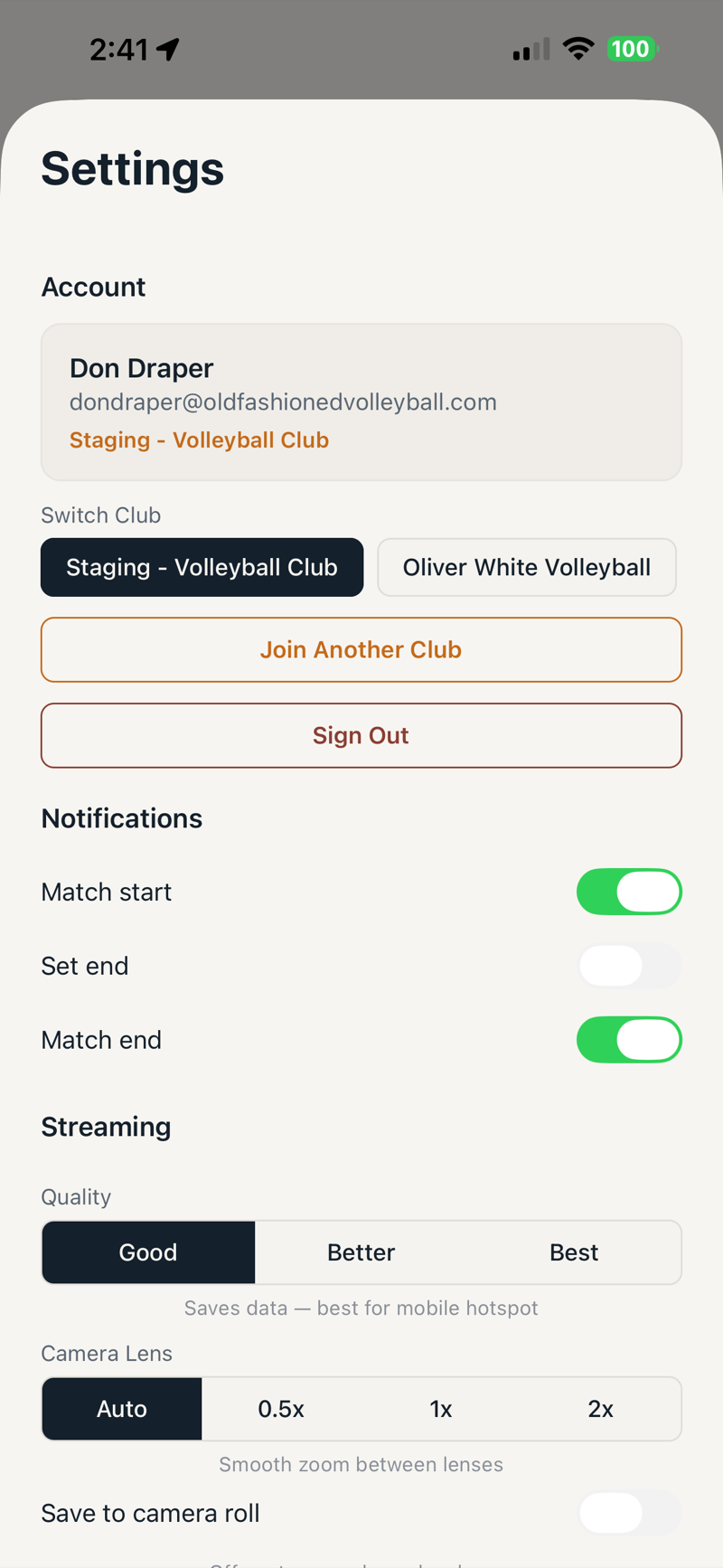
Access Settings from the Match List (top-right button) or from the Preview screen. During an active stream, Settings opens as an overlay to protect the video connection.
Streaming Quality
Good (720p) for mobile hotspots, Better (1080p) for most situations, Best for strong WiFi.
Overlay
Toggle the scoreboard on/off, adjust its size (20–50%), and pick which corner it appears in.
Camera Lens
Choose Auto, 0.5x, 1x, or 2x. Auto provides smooth zoom between lenses.
Club Switching
If you belong to multiple clubs, switch between them from Settings.
Troubleshooting
Go Live button won't enable
The button is briefly disabled while the app verifies your stream settings (2–3 seconds). If it stays disabled: check your internet connection, verify your email if you see a banner, and make sure the match is in “Ready” status.
Stream keeps disconnecting
Move closer to WiFi, switch between WiFi and cellular, or lower the quality preset. The app retries up to 10 times automatically with increasing intervals.
Camera not working
Check camera permissions in your device Settings app. Close other apps that might be using the camera. Restart OFV Live.
No sound on stream
Check microphone permission, make sure the mute button isn't active, and verify your phone isn't on silent mode.
Scores not syncing
Scores are queued offline and sync automatically when your connection returns. Check for a pending badge on the scoring panel showing how many actions are waiting.
QR code won't scan
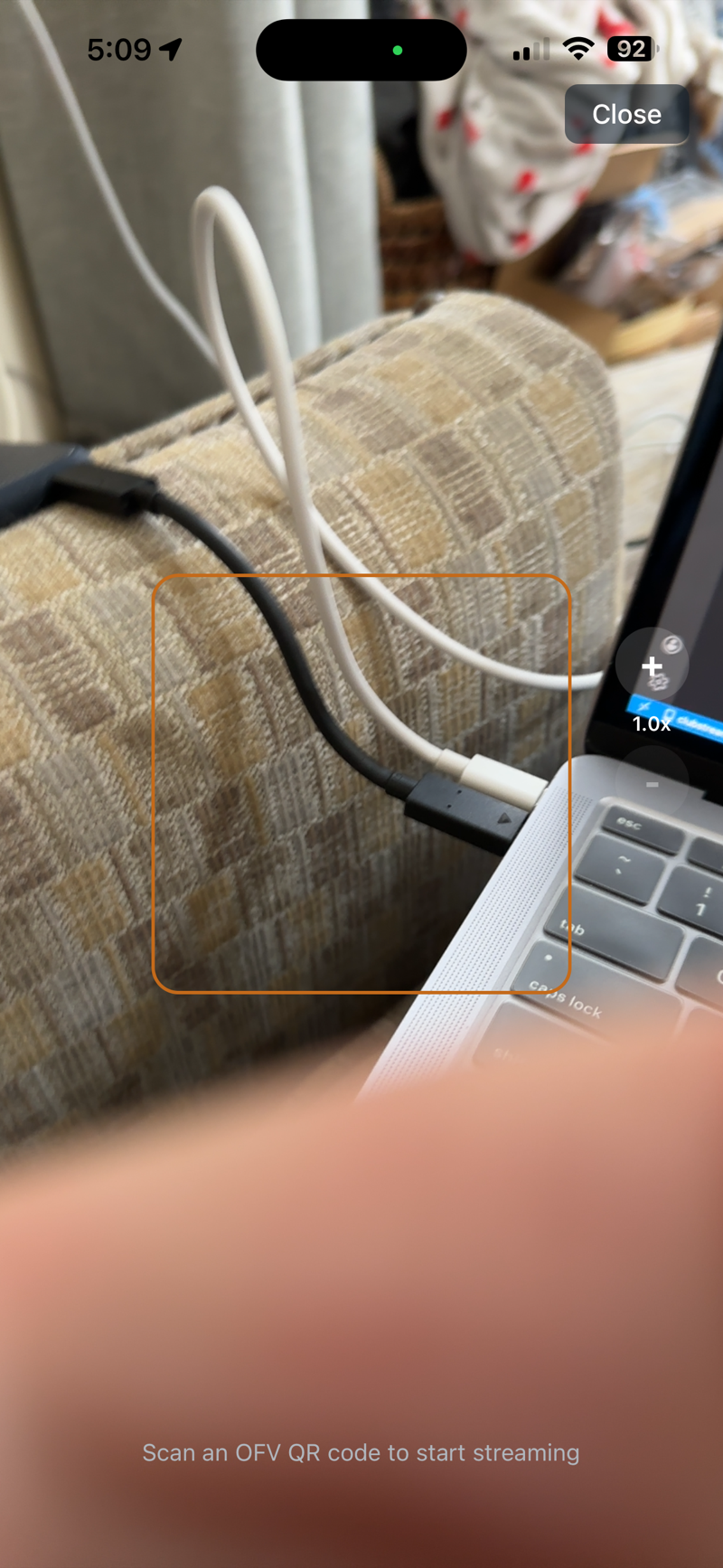
Make sure you're scanning an OFV QR code. Use the + zoom button for distant codes. Ensure good lighting.
App crashed during a stream
Reopen the app — you'll see a recovery prompt to resume or end the match. Your scores are always saved locally, so nothing is lost.
Tips for great streams
- Use a tripod — stable shots make a huge difference for viewers.
- Plug in your phone — streaming drains battery fast. Use a portable charger.
- Use WiFi over cellular — more stable and typically faster.
- Position behind the end line — gives the best view of the full court.
- Test before the match — do a quick stream test to verify everything works.
- Share the YouTube link early — send it to parents and fans before the match starts.
- Use the 0.5x lens — ultra-wide captures the entire court without panning.
Ready to stream?
Download OFV Live and go live in minutes.